
You’ve received an email link of a file or files that are ready for you to download using the Capsule Media High Speed File Transfer System powered by FileCatalyst. Follow the steps below to get started with your download.
Step 1 – Receive Email
You should receive an email from your sender that a file or files are ready for pickup. Click on the link you’ve received as part of that email.
Step 2 – Select File(s) to download
Once you’ve clicked the link in your email, you’ll be prompted to download and install the FileCatalyst Transfer Agent.
Once completed, you’ll see a screen that looks like the following:
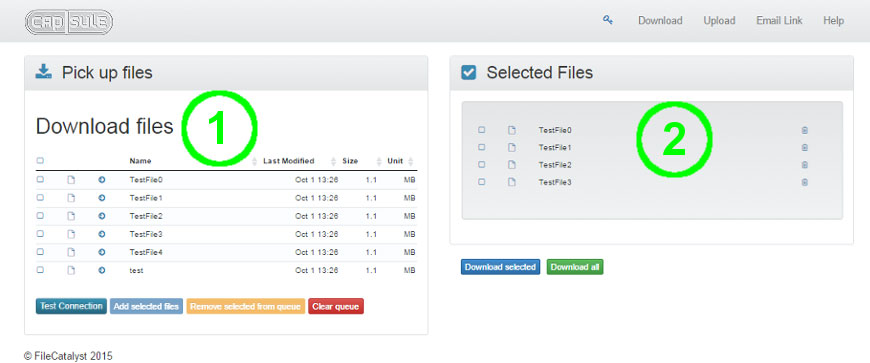
1 – Download Browse Area
Similar to the other two browse areas defined above, this area allows users to select all or some files from the received link. Clicking the “add” icon (a right-arrow in this example) adds an individual item to the selected files area. Checkboxes allow selection of multiple items, which are added to the selected files with the button found at the bottom of the browse area.
It is also possible test the connection against FileCatalyst Server using the “Test Connection” button. That is the same test that can be executed on TransferAgent Connections page.
2 – Selected Files Area
This area contains the files of the link that you have chosen to download. When download selected is pressed, all files within this list will be downloaded by the TransferAgent. During the download a “status” window showing important information such as the current file, items so far, the estimated time remaining, the average rate, and the percent of completion will be shown. In this status window you will also be given the option to cancel the transfer. If a cancellation request is received, the transfer will be aborted and you will return to the download page.
During the transfer, a “Cancel” button is available.
Step 3 -Transfer Complete
Congratulations, you’ve downloaded your files. After the transfer, the cancel button disappears and is replaced by “Open Download Location” button which will open the destination directory on your local machine. “Open Download Location” button is not available when FileCatalyst TransferAgent is running as service.
Simple Troubleshooting and FAQs
The major challenge you may encounter is that file acceleration requires UDP access to the network and this results in 90% + of client-side network issues. A second issue is user level permissions versus admin level permissions on operating systems. These are issues that need to be addressed from a security point from your own network. We can help assist through this, but it really comes down to your IT security settings and some simple changes that need to be made for high speed file transfers.
1) Why am I seeing “Attempt to connect to server failed” in a red popup using the transfer agent web client?
2) When I click on a link that was sent to me to download files, I can see the buttons to download, etc, but there aren’t any files for me to download.
3) TransferAgent is unable to open web pages from the tray menu; what is going on?
4) Why am I seeing an “UnsupportedClassVersionError?”
1) Why am I seeing “Attempt to connect to server failed” in a red popup using the transfer agent web client?
Chances are you’ve got your ports blocked. You need to make sure the following ports are opened. This may require the assistance of your network administrator.
2) When I click on a link that was sent to me to download files, I can see the buttons to download, etc, but there aren’t any files for me to download.
The issue is typically with your own network. This could be anti-virus, firewall or corporate policy implementation. These are by and large the most likely candidates. The behaviour you are seeing is most likely caused by your network firewall and the network does not like the UDP traffic and is preventing it.
3) TransferAgent is unable to open web pages from the tray menu; what is going on?
It is possible that TransferAgent may not have the correct permissions to open a web page on the system. Try restarting TransferAgent under a higher permission setting and then attempt to open the page through the tray menu. If the problem persists, close all open web browsers and try again. This may require the assistance of your network administrator.
4) Why am I seeing an “UnsupportedClassVersionError?”
You are likely trying to run with an unsupported version of Java. FileCatalyst products require a minimum version of Java 1.8.